Overview
If you’re familiar with AWS and EC2 instances you’ve probably had to configure a security group1 or two before, if for no other reason than to allow traffic to port 22 of your EC2 instances. Well today I hope to teach you a new way to connect to port 22, or any port for that matter, without needing to expose it to the internet.
The rest of this tutorial assumes you’re familiar with/have configured the AWS CLI.
Introducing SSM
 AWS Systems Manager (SSM) does a lot of different things but for the sake of this quick tutorial we’ll focus on the SSM agent. The agent is a piece of software that runs on EC2 instances, edge devices, and on-premises servers and virtual machines. The agent checks in and makes it possible for the AWS SSM service to configure those resources.
SSM Port Forwarding2
One of the other functions it provides is the ability to port forward. Port Forwarding allows you to securely create tunnels between your instances without the need to start the SSH service on the server, to open the SSH port in the security group or the need to use a bastion host.
Take a look at the following command:
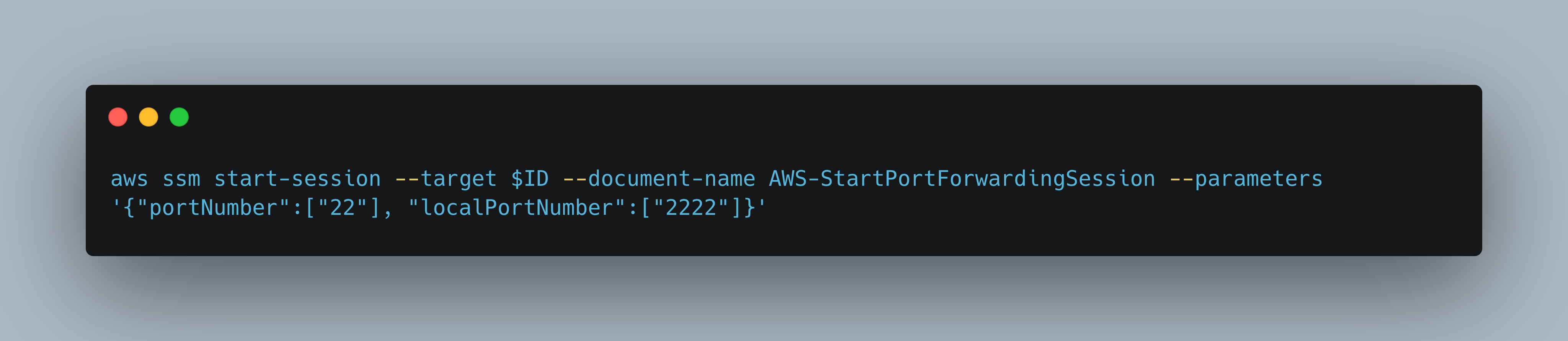
It might look daunting but all we’re doing is:
- Initiating a connection to our target (ID of EC2 instance) using the Session Manager.
- Telling the SSM agent to forward all connections to local port
2222to port22on our target.
Putting it all Together
This now allows us to do the following
~$ ssh -p2222 ec2-user@localhost
Or if you use an ssh config file (~/.ssh/config), add an entry such as
Host aws-box
  HostName localhost
  User ec2-user
  Port 2222
  IdentityFile ~/.ssh/KEY_HERE
Then
~$ ssh aws-box
Last login: Sun Dec 18 23:55:34 2022 from localhost

       __|  __|_  )
       _|  (     /   Amazon Linux 2 AMI
      ___|\___|___|

https://aws.amazon.com/amazon-linux-2/
[ec2-user@ip-172-31-88-227 ~]$
If everything worked properly, you should get a shell :)
Conclusion
This is one way to reduce the attack surface of your EC2 instances, no need to expose SSH or any remote administration port to the internet again!
This extends to other common remote administration ports as well, such as RDP ;)
A security group acts as a virtual firewall for your instance to control inbound and outbound traffic. ↩︎
https://aws.amazon.com/blogs/aws/new-port-forwarding-using-aws-system-manager-sessions-manager/ ↩︎